> For the complete documentation index, see [llms.txt](https://capinfra.gitbook.io/capverse-game/llms.txt). Markdown versions of documentation pages are available by appending `.md` to page URLs; this page is available as [Markdown](https://capinfra.gitbook.io/capverse-game/how-to-start-1/sign-up-connect-wallet.md).

# Sign Up / Connect Wallet

## *Step**1:*** Register for a Capverse Account.

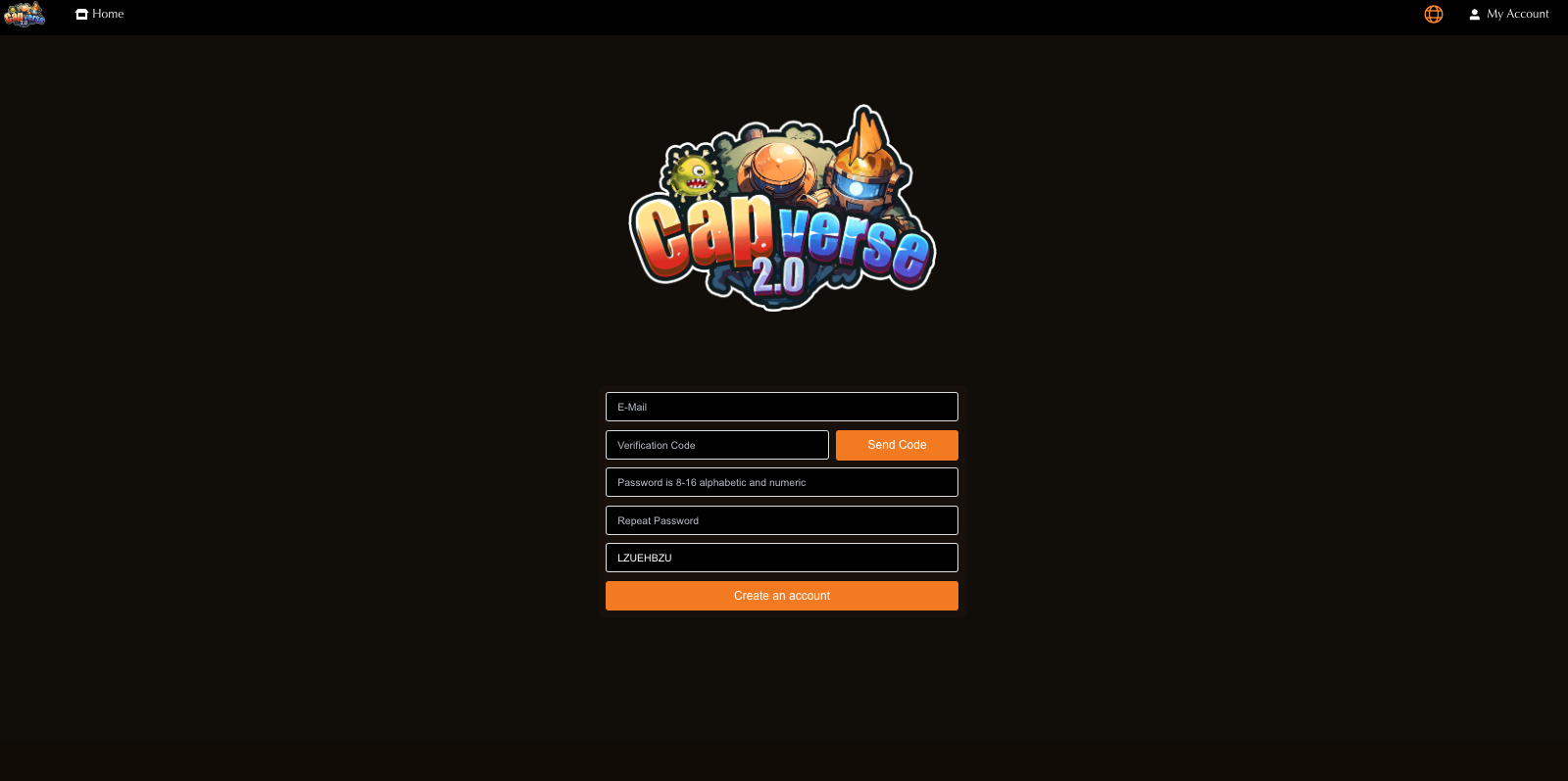
1. Access the URL in your browser: [https://app.capverse.game/register?type =register](https://app.capverse.game/register?type=register)

<figure><img src="https://2179706401-files.gitbook.io/~/files/v0/b/gitbook-x-prod.appspot.com/o/spaces%2FB2SmXP6AaNBlgODP391d%2Fuploads%2FNc17IQfoTbvAjj4lJjva%2F%E6%B3%A8%E5%86%8C.png?alt=media&amp;token=4c8c799e-7f9a-4134-bf03-b85b3d4ac83e" alt=""><figcaption></figcaption></figure>

2. Enter your email and click “Send Code”.
3. Check your email for the verification code.

> The verification code email *land in your spam folder. Some inboxes may display the sender as “noreply” — please double-check.*

4. Enter the verification code and set your password.

> The password must be 8-16 characters long and include both letters and numbers.

5. Click “Create Account” to complete the registration process.
6. You will be automatically logged into your account.

## *Step&#x32;**:*****&#x20;Connect Your Wallet**.

{% hint style="danger" %}
**Important Notes:**

* Each Capverse account can only be linked to **one wallet address** — **once bound, it cannot be changed or unlinked.**
* Always download wallets from **official sources**, and keep your **seed phrase and private key safe — never share them with anyone!**
  {% endhint %}

**We recommend TP Wallet and Metamask:**

* **TP Wallet**: <https://tokenpocket.pro/en/download/app>
* **MetaMask**: <https://metamask.io/download/>

**Now, let’s begin!**

#### Using MetaMask (Browser Extension) <a href="#shi-yong-metamask-cha-jian" id="shi-yong-metamask-cha-jian"></a>

1. Install MetaMask on Chrome and create a wallet.

> Install MetaMask on Chrome: <https://metamask.io/download.html>

<figure><img src="https://capverse.gitbook.io/~gitbook/image?url=https%3A%2F%2F1926653371-files.gitbook.io%2F%7E%2Ffiles%2Fv0%2Fb%2Fgitbook-x-prod.appspot.com%2Fo%2Fspaces%252FainSwBRljHLXGCg3G39g%252Fuploads%252Fi5ugZJvBYSCAA57hSau0%252Fimage.png%3Falt%3Dmedia%26token%3Da285f52b-5bfa-40d4-9ea4-b0e533cdbb76&#x26;width=768&#x26;dpr=4&#x26;quality=100&#x26;sign=b3c29191&#x26;sv=2" alt=""><figcaption></figcaption></figure>

2. Open MetaMask and switch the network to BNB Chain Llama Nodes。

<figure><img src="https://capverse.gitbook.io/~gitbook/image?url=https%3A%2F%2F1926653371-files.gitbook.io%2F%7E%2Ffiles%2Fv0%2Fb%2Fgitbook-x-prod.appspot.com%2Fo%2Fspaces%252FainSwBRljHLXGCg3G39g%252Fuploads%252Fyx9sID6fpgNFDtLNBkrI%252Fimage.png%3Falt%3Dmedia%26token%3D916c49ac-d718-4101-b2d5-9ddee89b261a&#x26;width=768&#x26;dpr=4&#x26;quality=100&#x26;sign=5bc38ee7&#x26;sv=2" alt=""><figcaption></figcaption></figure>

<figure><img src="https://2179706401-files.gitbook.io/~/files/v0/b/gitbook-x-prod.appspot.com/o/spaces%2FB2SmXP6AaNBlgODP391d%2Fuploads%2FU63pSlBCrO1X2GeLqBMN%2Fimage.png?alt=media&amp;token=53ba628a-91e4-4301-8a34-43286548f687" alt=""><figcaption></figcaption></figure>

> If not available, add it via: <https://chainlist.org>
>
> ![](https://capverse.gitbook.io/~gitbook/image?url=https%3A%2F%2F1926653371-files.gitbook.io%2F%7E%2Ffiles%2Fv0%2Fb%2Fgitbook-x-prod.appspot.com%2Fo%2Fspaces%252FainSwBRljHLXGCg3G39g%252Fuploads%252Ftt3XwgBQb9qWUra046W9%252Fimage.png%3Falt%3Dmedia%26token%3D5247bc42-6f26-4b2f-84cf-bd399662afe2\&width=300\&dpr=4\&quality=100\&sign=b2424a71\&sv=2)

3. Log in Capverse DAPP with the account you registered in ***Step 1***: <https://app.capverse.game/login>

<figure><img src="https://capverse.gitbook.io/~gitbook/image?url=https%3A%2F%2F1926653371-files.gitbook.io%2F%7E%2Ffiles%2Fv0%2Fb%2Fgitbook-x-prod.appspot.com%2Fo%2Fspaces%252FainSwBRljHLXGCg3G39g%252Fuploads%252FcsluOvl3cqZx7EJeVGKo%252Fimage.png%3Falt%3Dmedia%26token%3D67a89a4e-bfb4-4688-8e7c-9a076a63677b&#x26;width=768&#x26;dpr=4&#x26;quality=100&#x26;sign=2d9178a7&#x26;sv=2" alt=""><figcaption></figcaption></figure>

4. Click “Bind Wallet”.

<figure><img src="https://capverse.gitbook.io/~gitbook/image?url=https%3A%2F%2F1926653371-files.gitbook.io%2F%7E%2Ffiles%2Fv0%2Fb%2Fgitbook-x-prod.appspot.com%2Fo%2Fspaces%252FainSwBRljHLXGCg3G39g%252Fuploads%252FOuZddoAuI1pbIoZAT6x8%252Fimage.png%3Falt%3Dmedia%26token%3De2f9c431-48fc-424d-a126-5075602e1c97&#x26;width=768&#x26;dpr=4&#x26;quality=100&#x26;sign=20fa1035&#x26;sv=2" alt=""><figcaption></figcaption></figure>

5. Confirm the signature in your wallet to complete the binding.

{% hint style="danger" %}
Each Capverse account can only be linked to **one wallet address** — **once bound, it cannot be changed or unlinked.**
{% endhint %}

#### Using a Mobile Wallet App.

1. Open your wallet app and switch to BNB Smart Chain.
2. Open the Capverse DApp in the wallet’s built-in DApp browser: <https://app.capverse.game/login>
3. Log in to your Capverse account.
4. Tap “Bind Wallet” and confirm the signature to complete the process.
<figure><img src="https://capverse.gitbook.io/~gitbook/image?url=https%3A%2F%2F1926653371-files.gitbook.io%2F%7E%2Ffiles%2Fv0%2Fb%2Fgitbook-x-prod.appspot.com%2Fo%2Fspaces%252FainSwBRljHLXGCg3G39g%252Fuploads%252FffQ3On7vcy1zvH8ESJnG%252F%25E5%25AE%2587%25E5%25AE%2599%25E6%25A2%25A6%25E5%25B9%25BB%25E6%2584%259F%25E5%25BE%25AE%25E4%25BF%25A1%25E8%2581%258A%25E5%25A4%25A9%25E8%2583%258C%25E6%2599%25AF%25E5%259B%25BE.jpg%3Falt%3Dmedia%26token%3D2a9bfa57-fc8f-45df-a5b0-6b8c1f9b558a&#x26;width=768&#x26;dpr=4&#x26;quality=100&#x26;sign=6a7aed3f&#x26;sv=2" alt=""><figcaption></figcaption></figure>
